How to create a KidsLingua account
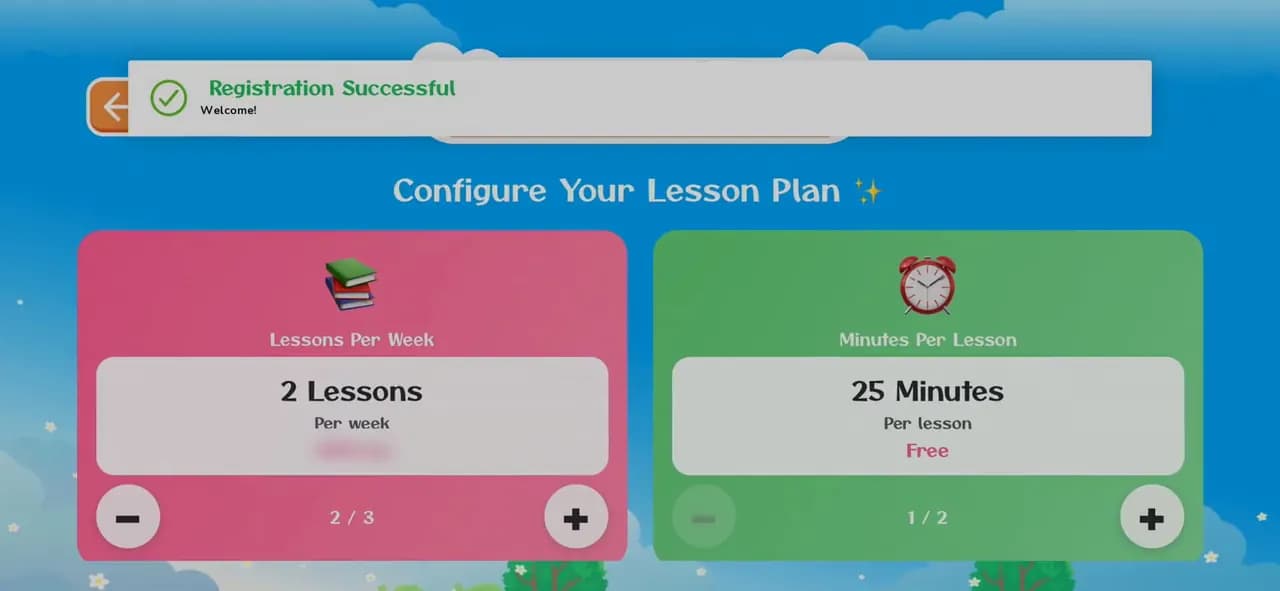
Sign up in the app in under a minute: your name, email and a password. The phone number and invite code are optional.
8 illustrated steps
Getting started · 6 steps · 0:31 video
Open the app, pick a language and log in with your family's email and password, so your child's profile and progress are there.
0:31 · No narration, just the app's own sounds. Every step is written out below.
Step 1 of 6
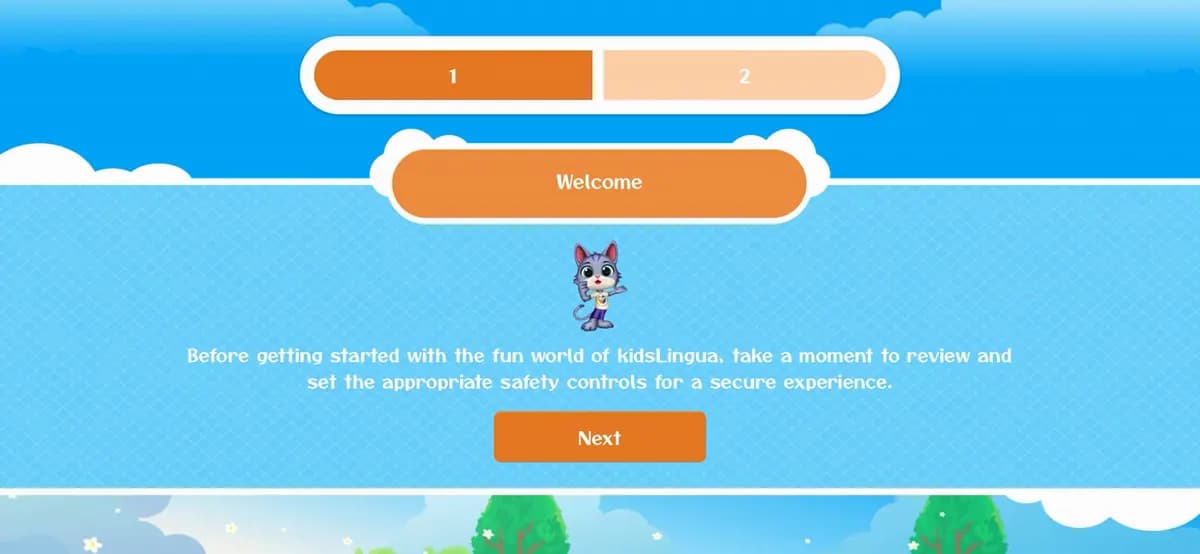
The first time you open KidsLingua, the welcome screen asks you to take a moment to set up safety controls for your child. Tap Next to carry on.
Step 2 of 6
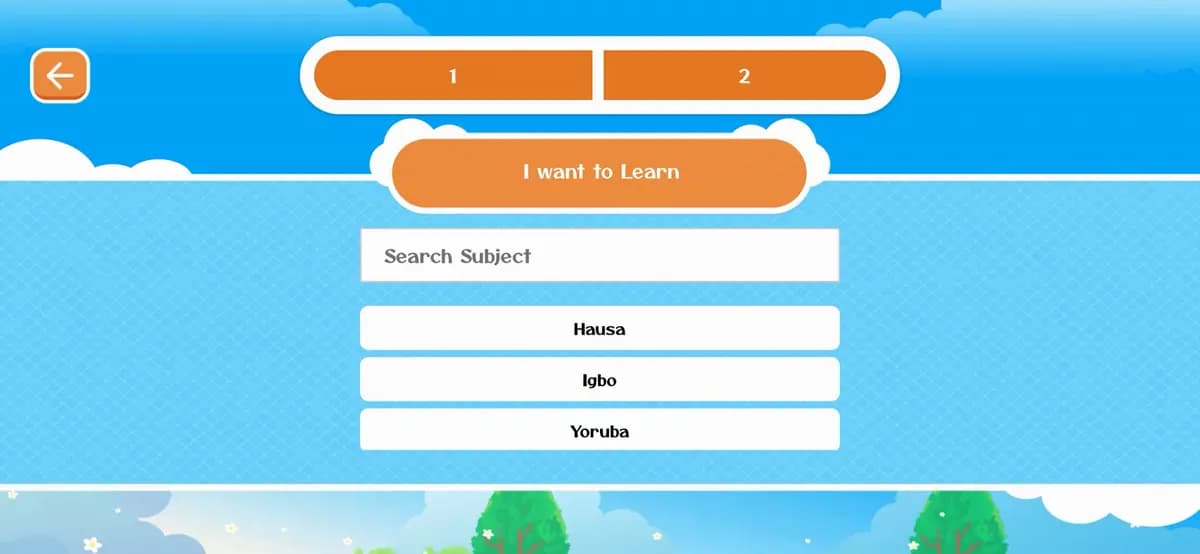
Pick the language your child will learn: Hausa, Igbo or Yoruba. You can also type it into the search box. The video picks Igbo.
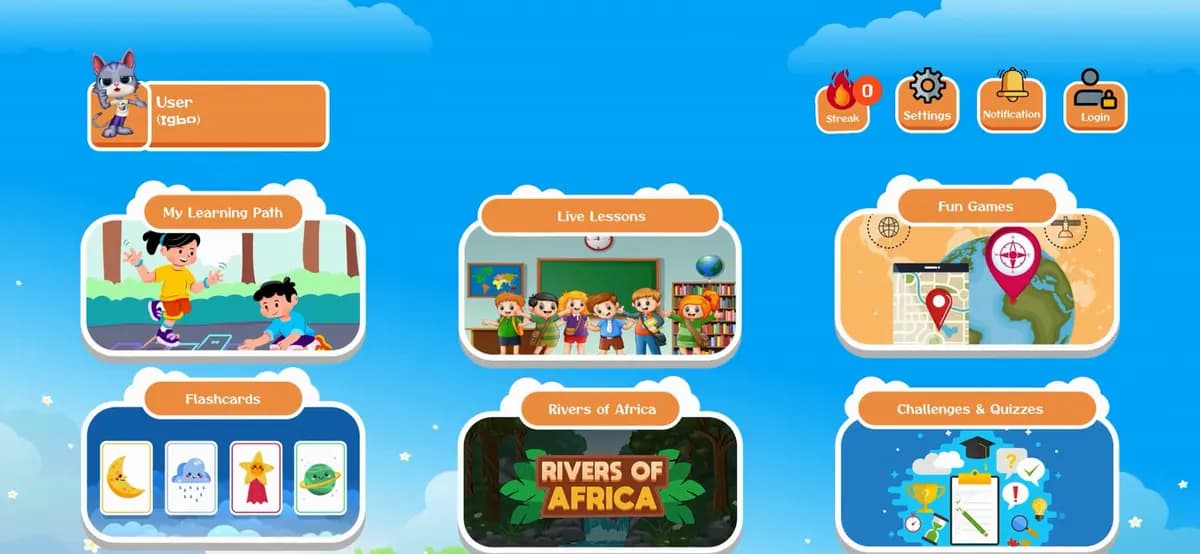
Step 3 of 6
You're now on the home screen as a guest. To use your family's account, tap the Login icon (a person with a padlock) at the top right.
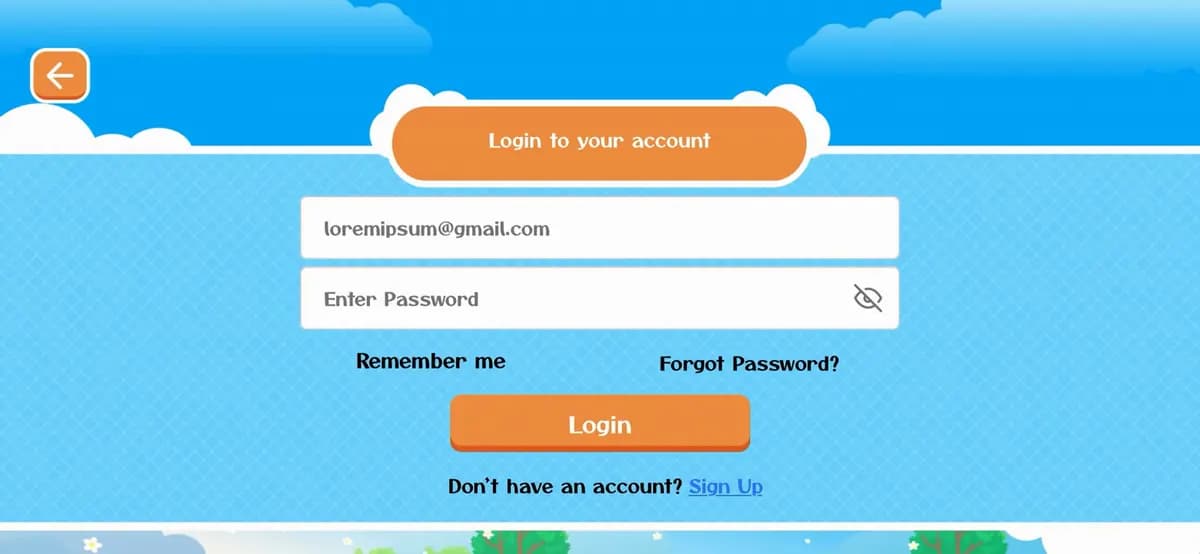
Step 4 of 6
Type the email address and password you used when you signed up. Tap the eye icon to check what you've typed. Your phone may offer to fill them in for you.
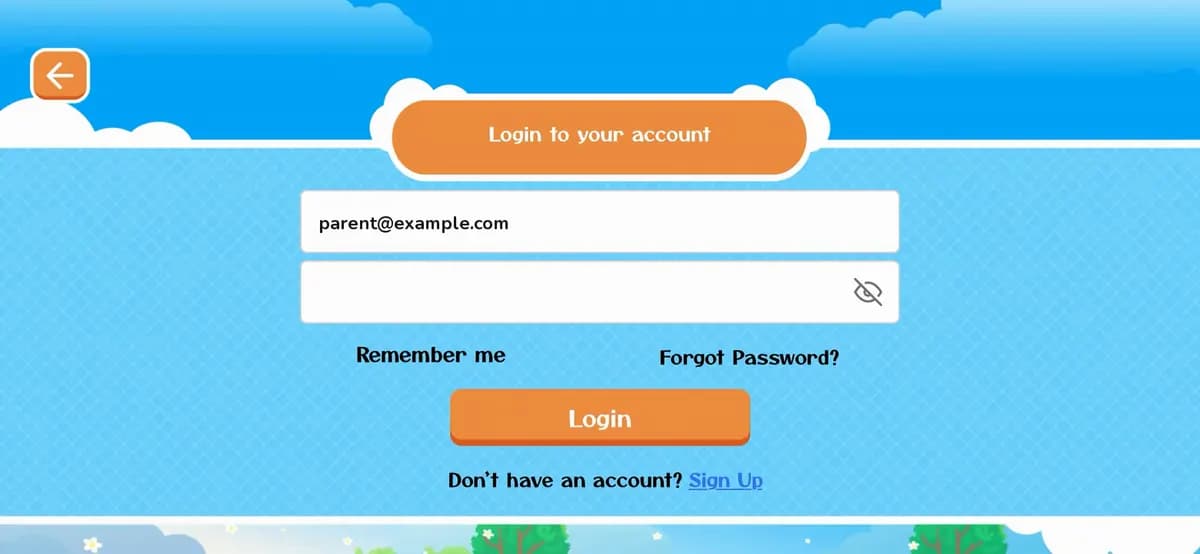
Step 5 of 6
When both boxes are filled in, tap the orange Login button. (The email in the video has been replaced with an example.)
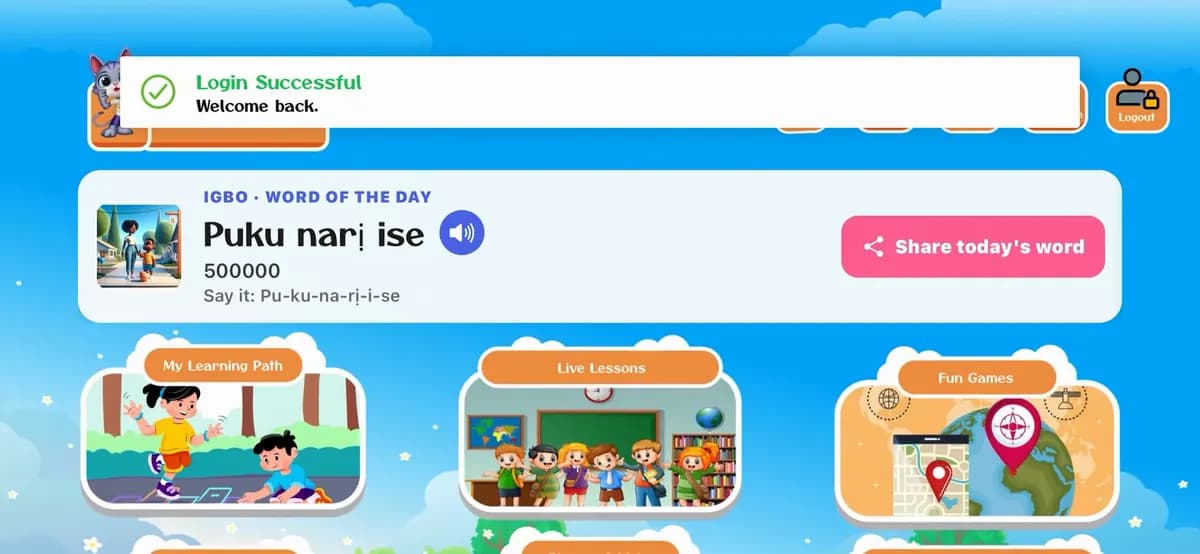
Step 6 of 6
You'll see Login Successful: Welcome back. Your child's profile name now shows at the top left, with today's Word of the Day to listen to or share. Scroll down for Fun Games, Flashcards, Live Lessons, Pronunciation Practice and more.
You won't see the welcome and language screens again. Start at step 3: tap Login at the top right of the home screen.
Tap Sign Up under the Login button to create one in the app. It takes under a minute.
How to create an accountTap Forgot Password? on the login screen to reset it.
Don't have the app yet?

Sign up in the app in under a minute: your name, email and a password. The phone number and invite code are optional.
8 illustrated steps
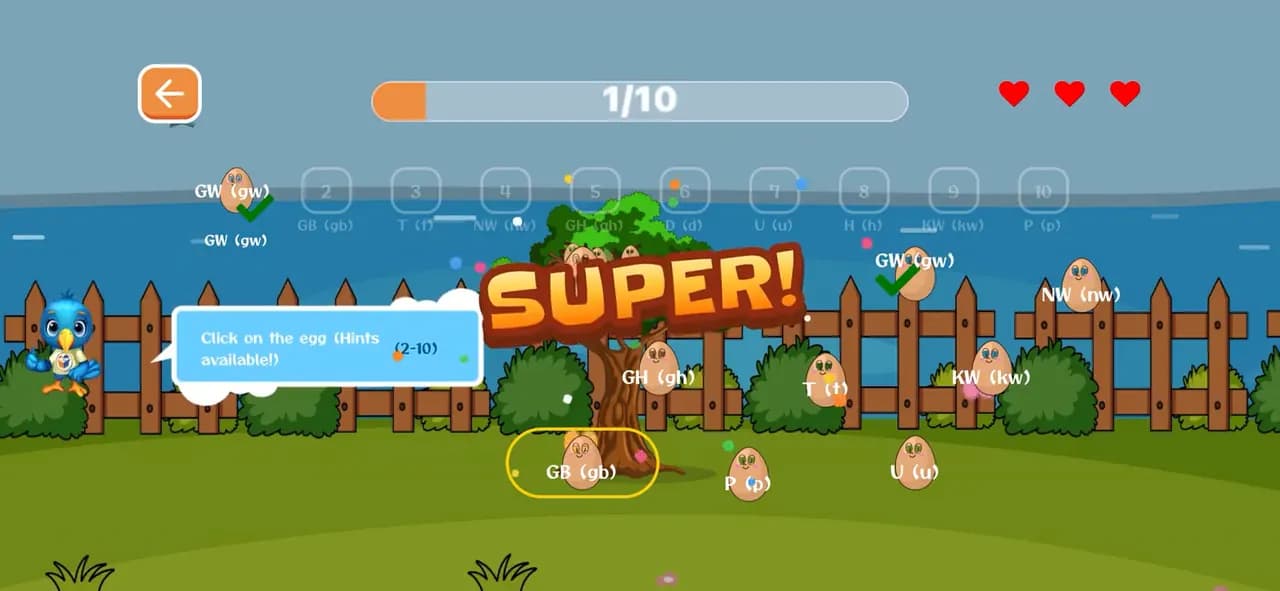
Three games, start to finish: Connect the Egg, the Listening Puzzle and the DragName Game. Each one teaches letters and words with sound, and every right answer opens a word card to listen to.
10 illustrated steps
Start free today, or leave your email and we'll send you new languages, stories and family tips.
Start learning freeOr get updates by email