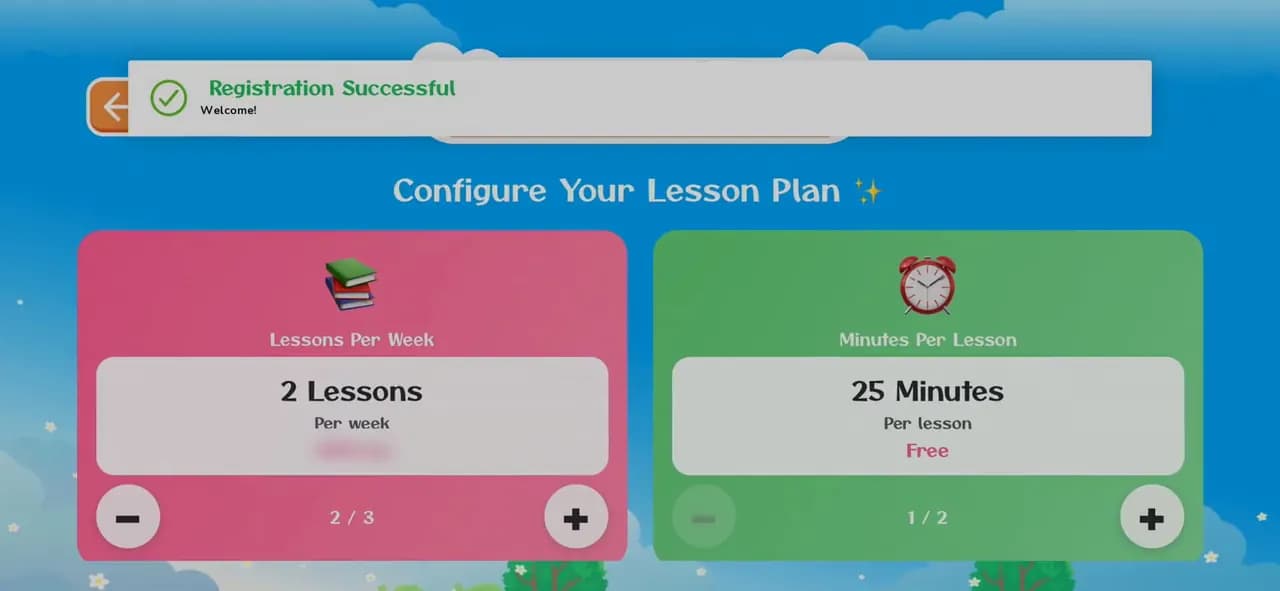
How to create a KidsLingua account
Sign up in the app in under a minute: your name, email and a password. The phone number and invite code are optional.
8 illustrated steps
Your Learning Path · 10 steps · 0:53 video
My Learning Path takes your child through lessons in order. The games teach whichever lesson they're on, and once a lesson is mastered the next one opens.
0:53 · No narration: you'll hear the app's music and the letters it says. Most of the first game is cut for time. Every step is written out below.
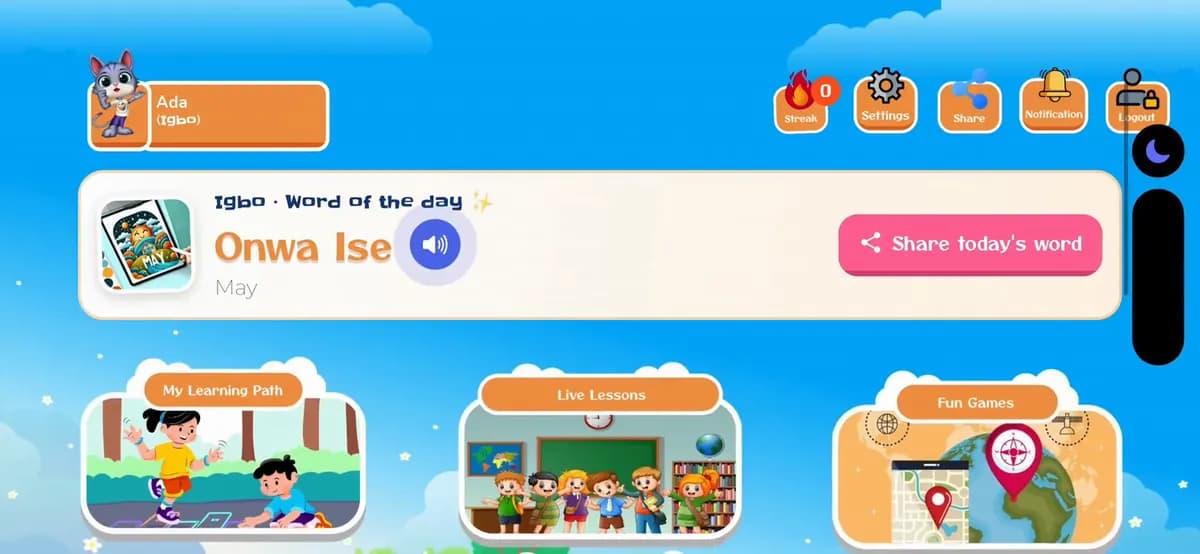
Step 1 of 10
On the home screen, tap My Learning Path.
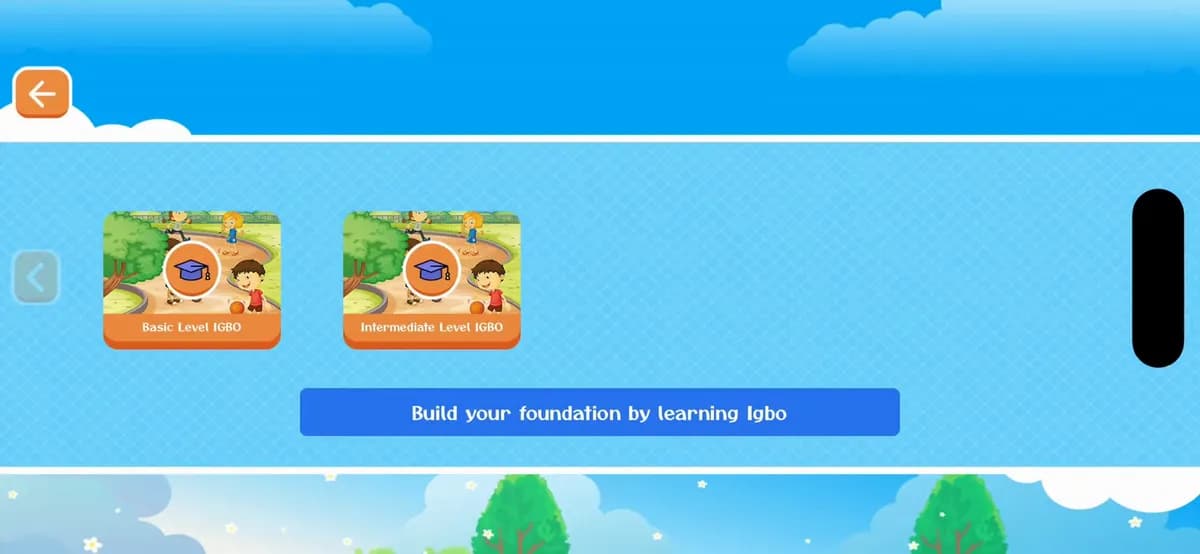
Step 2 of 10
Each language has levels, here Basic Level IGBO and Intermediate Level IGBO. Start with the basic level: tap it.
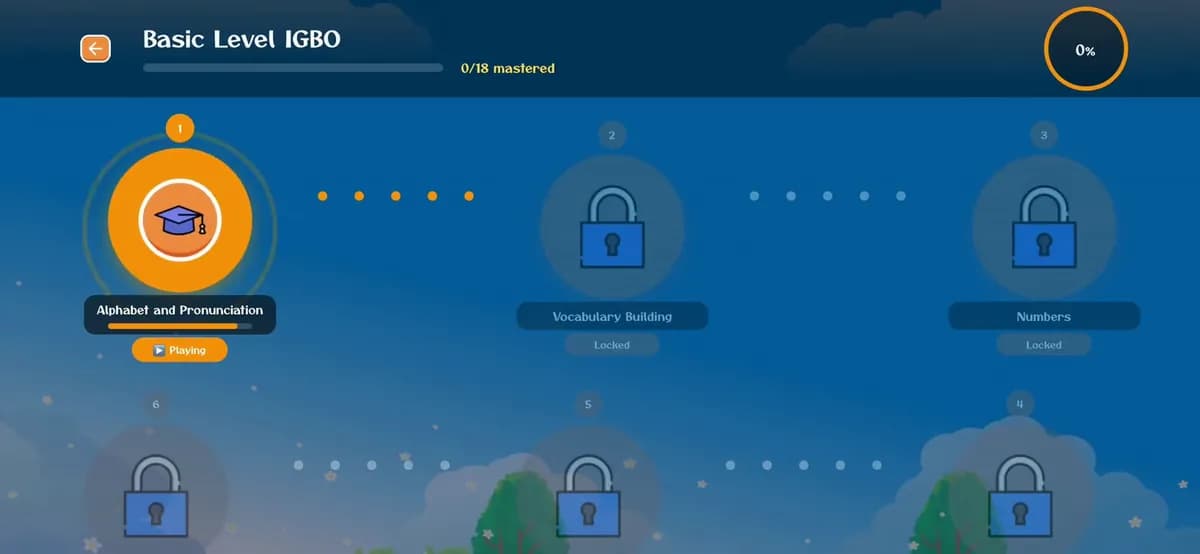
Step 3 of 10
The level is a path of numbered lessons: Alphabet and Pronunciation, then Vocabulary Building, Numbers and more. The lesson your child is on is orange and says Playing; the ones after it stay Locked for now. The bar at the top counts the lessons mastered (here 0/18), and the ring shows it as a percentage.
Step 4 of 10
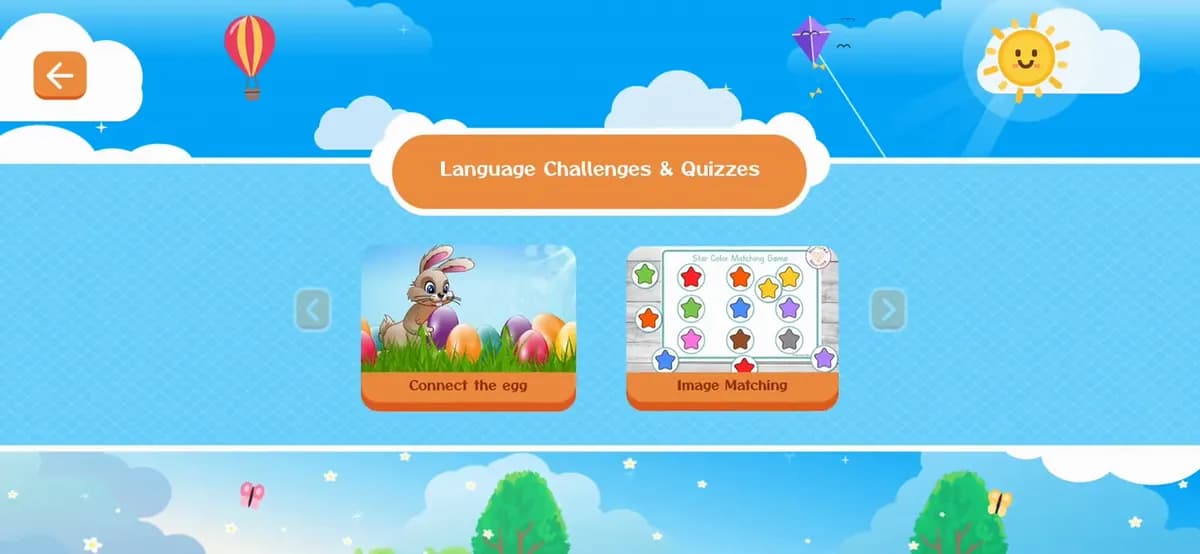
Go back to the home screen and open Challenges & Quizzes (scroll down a little to see it). Pick a game, here Image Matching.
Step 5 of 10
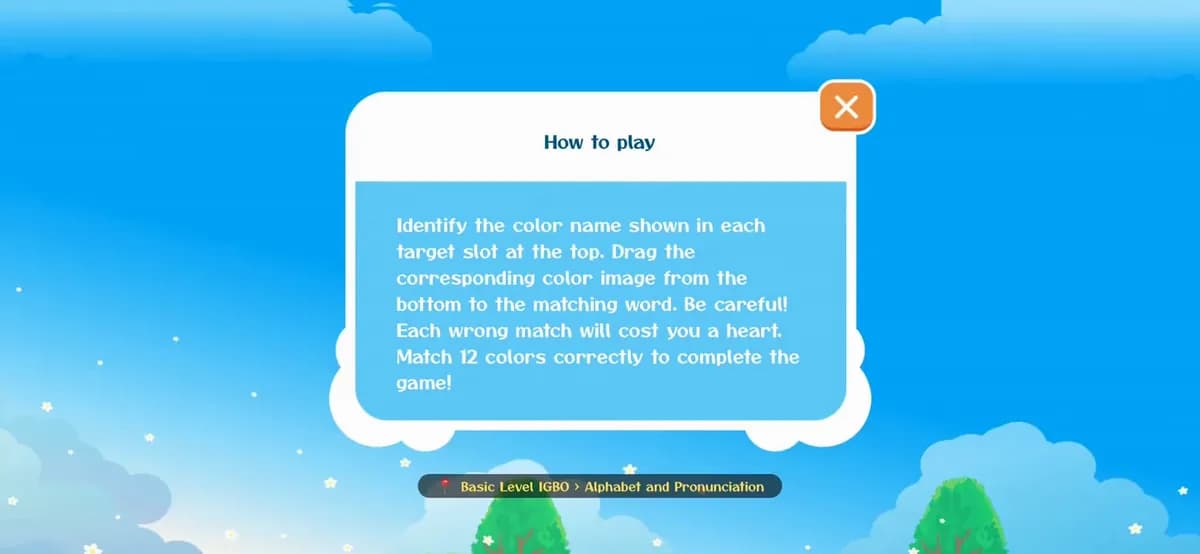
Look under How to play: the label says where on the path this game is, Basic Level IGBO › Alphabet and Pronunciation. The game uses that lesson's letters and words. Tap the X to start.
Step 6 of 10
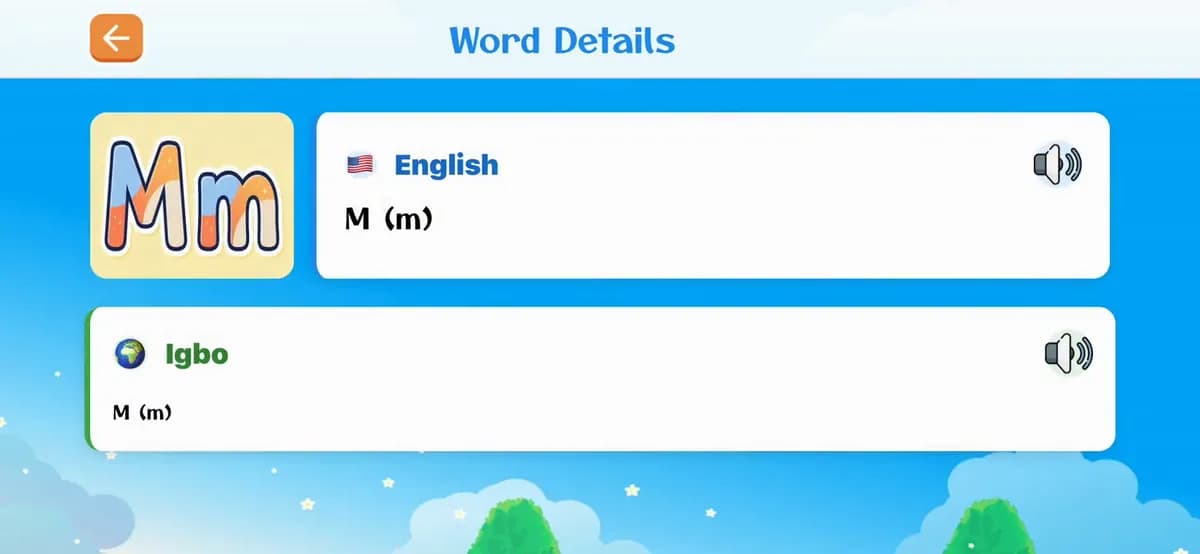
Drag each picture to its name. A right match opens Word Details, with the word in English and Igbo: tap a speaker to hear it. A wrong match costs one of your three hearts.
Step 7 of 10
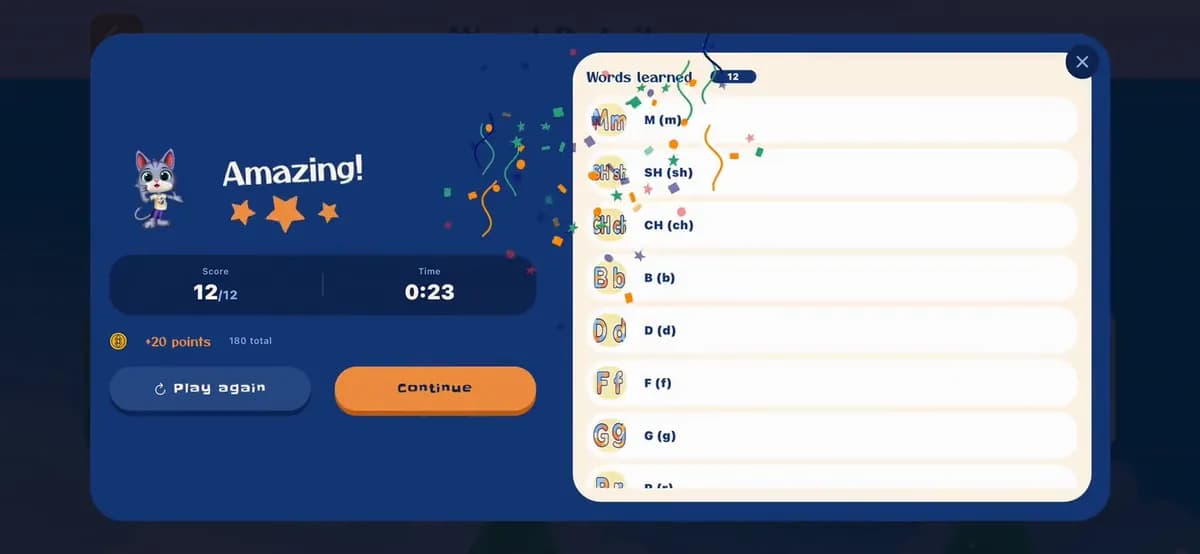
After the last match you see your stars, score, time and points, and every word learned. Tap Continue (or Play again for more practice).
Step 8 of 10
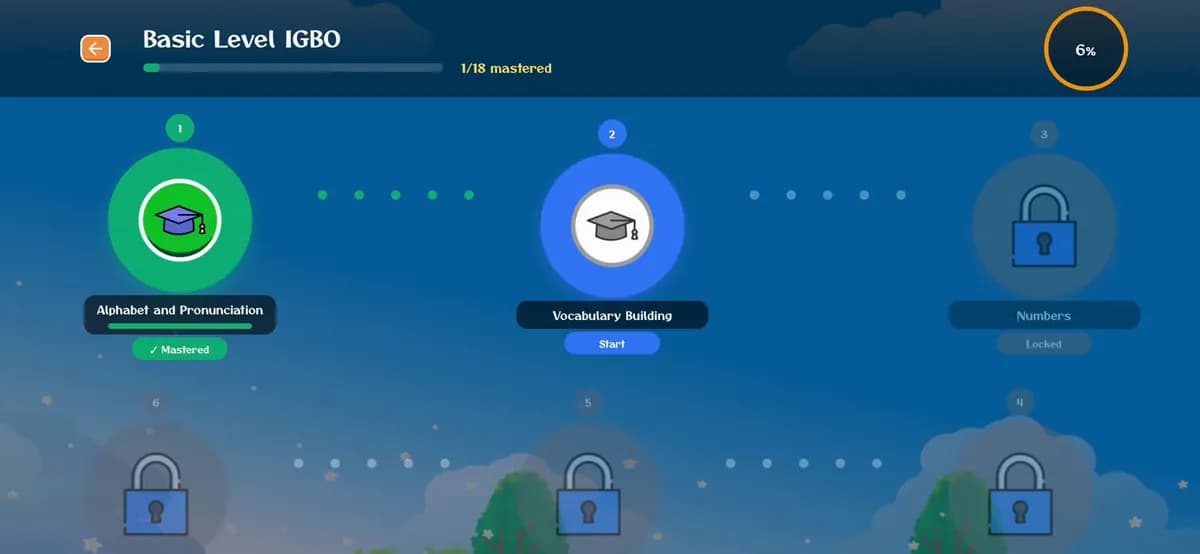
Back in My Learning Path, Alphabet and Pronunciation is green and ticked Mastered, and Vocabulary Building is open and says Start. The bar now shows 1/18 mastered.
Step 9 of 10
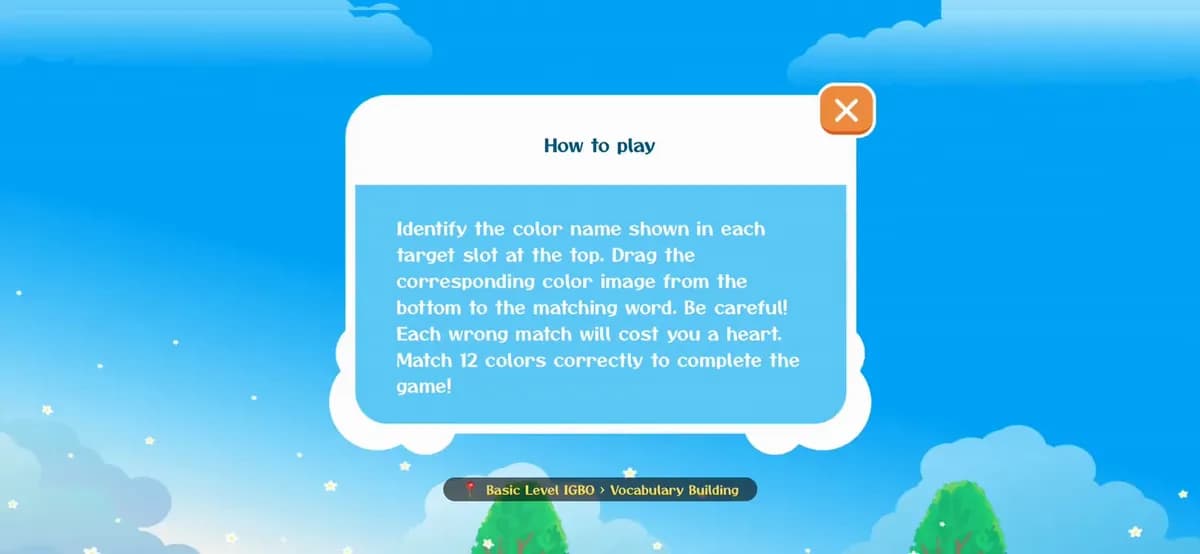
Open the same game again: its label now says Basic Level IGBO › Vocabulary Building, and instead of letters it asks for words like Akwa and Okpu.
Step 10 of 10
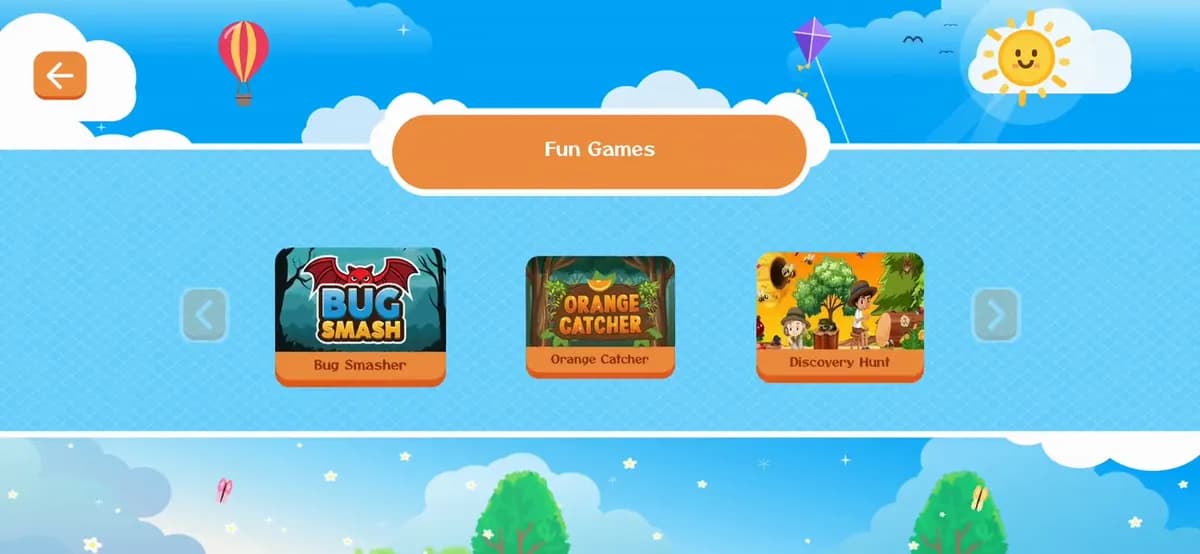
The games under Fun Games, like Discovery Hunt, follow the path in the same way: this one also says Vocabulary Building.
The label under How to play shows the level and lesson the game is working on.
Open My Learning Path to see which lessons are mastered and which one is next.
See how Connect the Egg, the Listening Puzzle and the DragName Game are played.
How to play the gamesDon't have the app yet?

Sign up in the app in under a minute: your name, email and a password. The phone number and invite code are optional.
8 illustrated steps
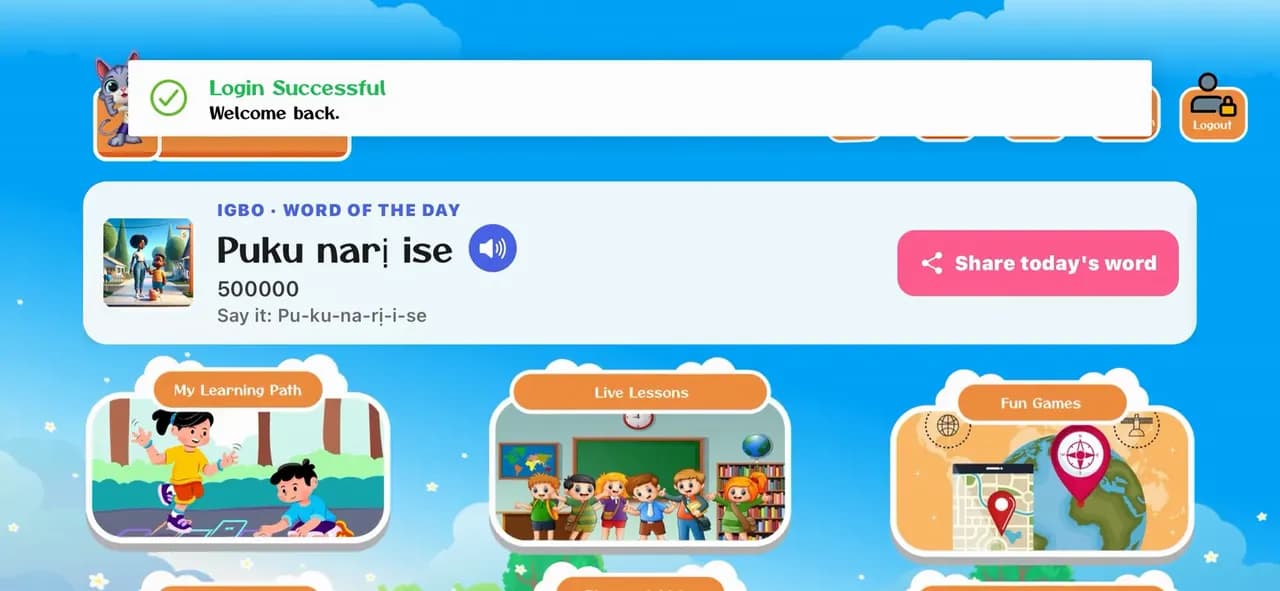
Open the app, pick a language and log in with your family's email and password, so your child's profile and progress are there.
6 illustrated steps
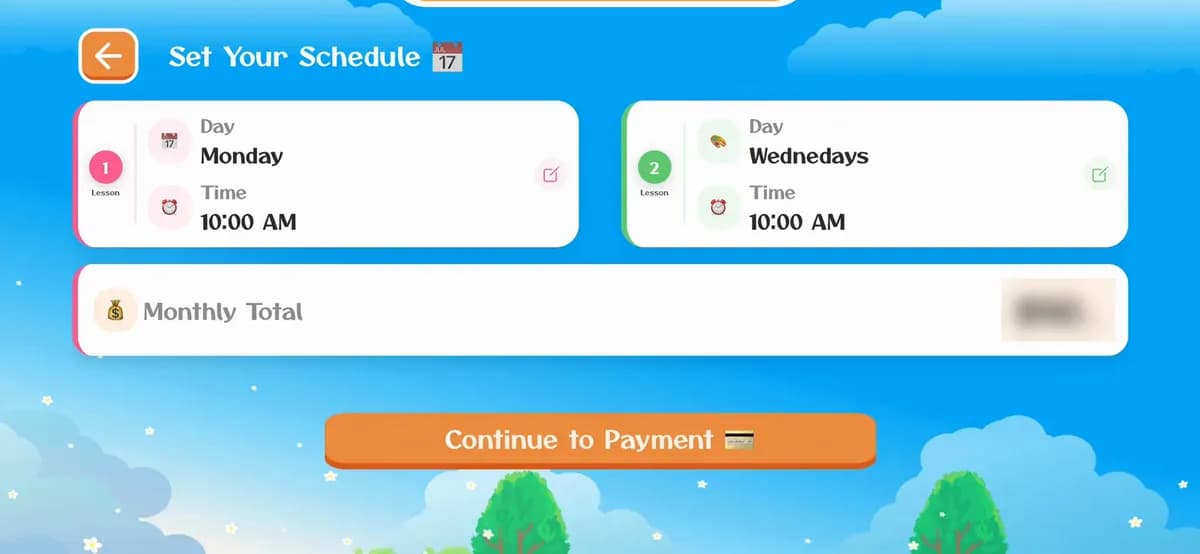
Enroll your child in live lessons with a teacher: choose how many lessons a week and how long, pick the days and times, then pay by card. The enrollment shows on the profile straight away.
8 illustrated steps
Start free today, or leave your email and we'll send you new languages, stories and family tips.
Start learning freeOr get updates by email